

Updated September 2026
You turn an Excel workbook into a web app in seven steps. Audit the tabs, then turn data tabs into tables, columns into typed fields, formulas into rules, and color codes into statuses. Add logins, pick a build route, and run the app beside the workbook for two weeks before you cut over. On the AI-built route nobody on your team writes code, because the uploaded workbook is the spec. A first working version usually exists within days. A build sprint starts at $2,000 as of this writing, against $10,000 to $50,000 for a freelancer and $40,000 to $250,000 for an agency.
In short
- Converting a workbook is a mapping job: tabs become tables, columns become fields, formulas become rules, and color codes become statuses.
- No coding is needed on the AI-built route, because the workbook itself is the specification.
- As of this writing, an AI-built sprint starts at $2,000, a freelancer runs $10,000 to $50,000, and an agency runs $40,000 to $250,000.
- Run the app and the workbook side by side for two weeks, then cut over and keep an Excel export for the accountant.
I spent years at McKinsey watching operations teams run on workbooks that had outgrown Excel. The steps below are the ones I run through at the table with business owners every week. Each step maps one thing in the workbook to one thing in the app. Once the mapping is done, the build is the easy part.
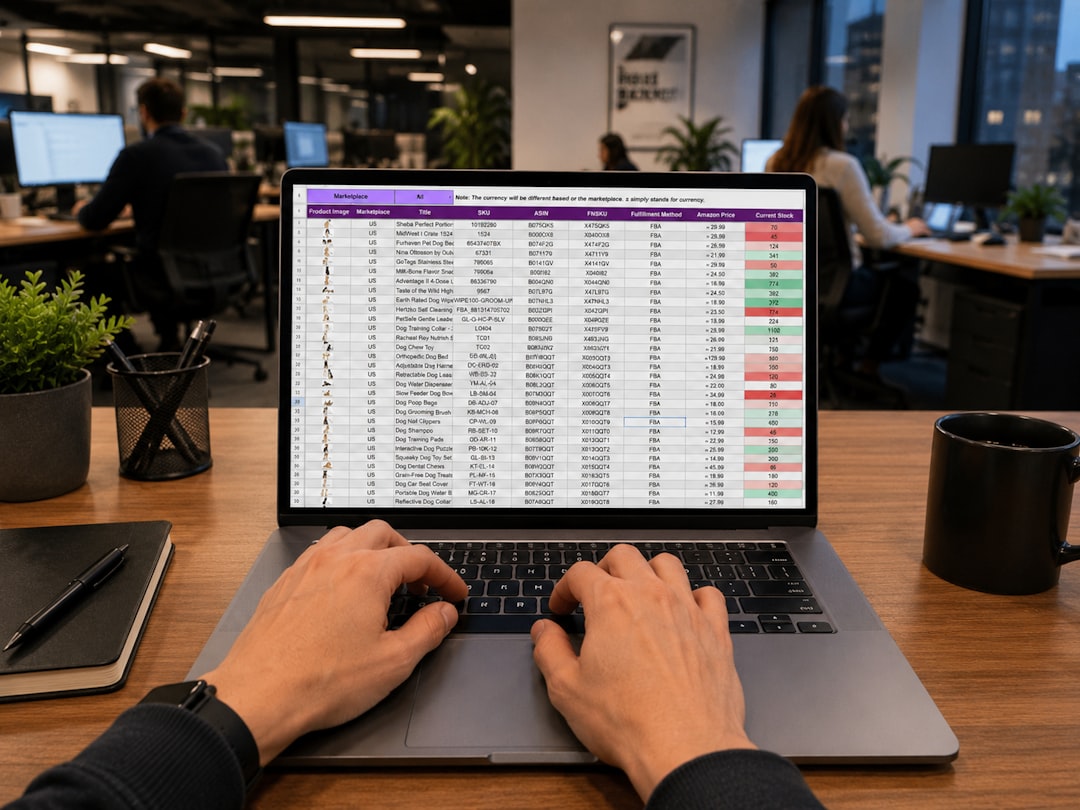
How can I convert my Excel spreadsheet into a web app?
You convert the workbook by mapping each part of the file onto a part of the app, in this order:
- Audit the workbook for 20 minutes: list the tabs, count the users, find the owner.
- Turn each data tab into a table.
- Turn each column into a typed field.
- Turn each formula into a rule.
- Turn the color coding and the Status column into a workflow with owners.
- Add logins and permissions.
- Pick a build route, then run the app and the workbook in parallel for two weeks and cut over.
The order matters, because a field lives inside a table and a status change often triggers a calculation. For the background, our Excel to app master guide covers the whole subject.
Before you start: the 20-minute workbook audit
Open the workbook and list every tab. Next to each tab, write one of three words: data, calculation, or archive. A data tab holds records, one row per thing (a job, an order, a customer). A calculation tab holds formulas that read from the data tabs. An archive tab is a copy of an old data tab, usually named with a year. Archive tabs are imported once, as history, and never converted.
Then count users. Write down every person who opens the file in a normal month. Most workbooks have one person who edits and five who look. That ratio decides how many logins you need.
Last, find the owner. Every workbook has one person who knows why column K is hidden and why row 200 is red. Book an hour of their time before you start.
Ray Panko's research at the University of Hawaii found errors in 91% of the 54 operational spreadsheets audited in field studies from 1997 onward. The audit is where you find your own. Fix the obvious ones now, because the app will copy whatever the workbook says.
Step 1. Turn tabs into tables
Every data tab becomes one database table, so the Jobs tab becomes a jobs table. Each row becomes one record.
Lookup tabs become reference tables. A tab called Rates, Price List, or Codes, which other tabs read with VLOOKUP, is a reference table. One person should own each reference table.
The summary tab is a report. Do not make a table from a dashboard tab. The app calculates the summary from the records each time someone opens the report.
Watch for one trap. Some tabs hold two kinds of thing in one grid, such as orders with their line items listed underneath. That tab becomes two tables with a link between them. Line items get their own rows, and reports can add them up.
Step 2. Turn columns into typed fields
Each column becomes a field with a type, which tells the app what the field may hold. Excel lets you type "TBC" into a date cell. A date field refuses "TBC" and asks for a date.
Dates become date fields. Money becomes a currency field with two decimals. Columns where people pick from a short list (status, region, supplier) become dropdown fields with the list fixed. Yes/No columns become checkboxes. Columns that name a row in another tab (Customer, Job Number) become links to that record.
Then deal with the Notes column. Open 30 rows of Notes and read them. You will find three or four things people write there because no column exists for them: a delivery date, a discount reason, a contact name. Each of those gets its own field.
Mark the required fields. In the workbook nothing is required, so rows go in half empty. In the app, customer and due date are usually required and notes are optional.
Step 3. Turn formulas into rules
Every formula becomes a rule the app runs on its own. A total column, =D2*E2, becomes a calculated field the app updates the instant either input changes. A VLOOKUP against the Rates tab becomes a link to the rates table. An IF that sets a flag becomes a validation or a status rule.
List each formula once, in plain words, before anyone builds anything. "Margin equals quoted price minus cost, divided by quoted price." That plain sentence is the rule.
Macros need a separate decision. Some become buttons in the app. Some disappear, because the app does the job automatically. The full decision is in can you keep your Excel formulas and VBA macros when you convert to a web app.
Step 4. How do I turn an Excel-based business process into software?
You turn the business process into software by turning the color coding into a workflow. In the workbook, a yellow row means "waiting on the client" and a green row means "approved." A Status column holds words like Quoted, Won, and Invoiced. Those colors and words are the process, and nobody wrote the process down anywhere else.
Write the statuses in order, as a list. Then, for each status, write two things: who moves a record into that status, and what must be true first. "Only the estimator moves a job to Quoted. The job needs a customer, a site address, and a price." That list is a workflow. The app enforces the list, so a job cannot reach Invoiced without a price.
Add an owner to each status. In the workbook, a row sits yellow for three weeks because nobody is responsible for the row. In the app, every record in "waiting on client" carries a name and a date, so overdue records become a Monday morning report.
This step is where the workbook stops being a filing cabinet and starts being a process. Some teams have a simpler pain: people typing into the wrong rows. For them, the form-first route in convert your Excel spreadsheet into a web form your team actually fills in is a faster first move.
Step 5. Add logins and permissions
Give each user a login and a role. The roles usually match the audit count: a few editors, many viewers, and one admin who owns the reference tables. A field crew that only updates its own jobs gets a role that shows only those jobs.
Excel cannot do this, and Microsoft says so. Microsoft's documentation states that worksheet protection "isn't intended as a security feature". A protected sheet cannot show one row to one person and hide that row from another. The app can. The detail, including clients who see only their own records, is in how to add user logins and permissions to a spreadsheet-based process.
Step 6. What is the easiest way to build an app from an existing Excel spreadsheet?
The easiest route is to upload the workbook and let an AI coding agent build the first version from the file. No-code builders are the cheapest way to get a simple list onto a phone. Developers are the right call for large or unusual systems. Prices in the table are as of this writing.
| No-code builder | Freelance developer | Agency | AI-built custom app | |
|---|---|---|---|---|
| Time to a working app | Days to weeks, if you build it yourself | Two to four months | Three to nine months | First version within days. The RSB steel contractor build took six weeks from kickoff to deployment |
| Cost band | From $5 per user per month (AppSheet Starter) or $25 per month (Glide Basic), rising with users and features | $10,000 to $50,000 | $40,000 to $250,000 | Free to try. Build sprints from $2,000. Hosting from $9.99 per month with no per-user fees |
| Who does the work | You, inside the builder's editor | One contractor. Quality depends on the person | A project team, starting with discovery workshops | Leonardo builds from the workbook. A human engineer reviews every build |
| What you own | A subscription. Neither pricing page offers code export or self-hosting | The code, if the contract says so | The code, if the contract says so | A Ruby on Rails app on PostgreSQL, in your own GitHub repository |
The no-code figures come from the AppSheet pricing page and the Glide pricing page, both read in September 2026. Our own figures are on the services page.
For the tools by name, read the best Excel to web app converters in 2026, compared honestly. For the price, driver by driver, read how much it costs to replace a spreadsheet with a custom web app.

Step 7. Run both in parallel for two weeks, then cut over
Import the current data, then run the app and the workbook side by side for two weeks. Two people enter every new record in both places. At the end of each day, compare the totals. Any difference is a bug in the app or an error the audit missed. Both are worth finding before you switch.
Set a cutover date and tell everyone. On that day, rename the workbook file to add "OLD" and make the file read-only. People will open the old file by habit for a week, and read-only stops them adding rows nobody will see.
Keep an export. Your accountant, your bank, or a customer will still want a spreadsheet. A good app exports any list to .xlsx or .csv in one click. The workbook stops being the place where the truth lives.
What you get at the end
At the end you have a web app with one record for each row that used to live in the workbook. Each field has a type, so bad data cannot get in. Each formula runs on its own. Each status has an owner and a date. Each user sees only what their role allows, and nobody waits on a locked file. In the RSB steel contractor case, the estimating workbook went from kickoff to a deployed app in six weeks. Estimates came out 62% faster and cost 40% less each. The workbook already knew how to price steel; the app let more people use that knowledge with fewer mistakes.
When you should keep the workbook
Some workbooks should stay in Excel. A one-person analysis model that changes shape every time you use the model is a thinking tool, and an app would slow you down. A workbook that changes shape every week has no stable process to convert yet. Run the process by hand for three months, then look again. Convert the workbook that five or more people touch every day, where a wrong cell has a dollar figure attached. Unsure which side of that line you are on? Should you rebuild your Excel workbook as software or keep using Excel walks through the decision.
Can I turn an Excel file into an app without coding?
Yes. On the AI-built route nobody on your team writes code or learns a builder. You upload the workbook. Leonardo, our AI coding agent, reads the tabs, columns, and formulas as the spec. Tabs become tables, columns become typed fields, formulas become rules, and the Status column becomes a workflow. Leonardo then writes a standard Ruby on Rails app on a PostgreSQL database.
The code lands in your own GitHub repository. A human engineer reviews every build before you rely on the app. The mapping in the seven steps above is the same mapping Leonardo makes, which is why the audit matters. We have converted more than 400 spreadsheets this way, and the upload is free to try with no credit card.
Skip the seven steps. Upload the workbook.
Leonardo reads your tabs, columns, and formulas as the spec and builds a database-backed app you own. Free to try, no credit card.
Prefer to talk first? Contact us and we will look at your workbook with you.
Frequently Asked Questions
How can I convert my Excel spreadsheet into a web app?
You convert an Excel spreadsheet into a web app by mapping each part of the workbook onto a part of the app. Data tabs become tables, columns become typed fields, formulas become rules, and the Status column becomes a workflow. Then you add logins, pick a build route, and run the app beside the workbook for two weeks before you cut over.
Can I turn an Excel file into an app without coding?
Yes, you can turn an Excel file into an app without writing any code. On the AI-built route you upload the workbook and the AI coding agent reads the tabs, columns, and formulas as the specification. The output is a standard Ruby on Rails app on a PostgreSQL database in your own GitHub repository, reviewed by a human engineer.
What is the easiest way to build an app from an existing Excel spreadsheet?
The easiest way to build an app from an existing Excel spreadsheet is to upload the workbook to an AI-built service. You review the first version within days. No-code builders such as AppSheet (from $5 per user per month) and Glide (from $25 per month) are cheapest for a simple phone list. You build the app yourself. A freelancer ($10,000 to $50,000) or an agency ($40,000 to $250,000) suits a large or unusual system. Prices are as of September 2026.
How do I turn an Excel-based business process into a custom software application?
You turn an Excel-based business process into a custom software application by writing down the statuses hidden in the workbook's color coding and Status column. For each status, name who moves a record into that status and what must be true first. Those statuses, owners, and conditions become a workflow the app enforces. Tabs, columns, and formulas map onto tables, fields, and rules around that workflow.
How long does it take to turn a spreadsheet into a web app?
Turning a spreadsheet into a web app takes days to weeks on the AI-built route and months with a developer. In the RSB steel contractor case, the estimating workbook went from kickoff to a deployed app in six weeks. A freelancer typically takes two to four months and an agency three to nine months.
Do I lose my data when I convert Excel to an app?
No, you do not lose your data when you convert Excel to an app. The rows in each data tab are imported into the matching table as records, and archive tabs are imported once as history. The original workbook stays on your drive, and the app exports any list back to .xlsx or .csv. The two-week parallel run in Step 7 is where you confirm the totals match before you switch.